
Last updated: November 8, 2026. Flow details were rechecked against Google’s Flow Help Center on that date. Google changes these products often, so check the linked sources if you are reading this later.
Open Google Vids and you will find a button that generates video clips from a prompt. Open Google Flow and you will find the same promise. Both apps can make AI video, both draw on Google’s video models, and both are free to try in some form. So why does Google have two, and what does Google Vids vs Google Flow really come down to?
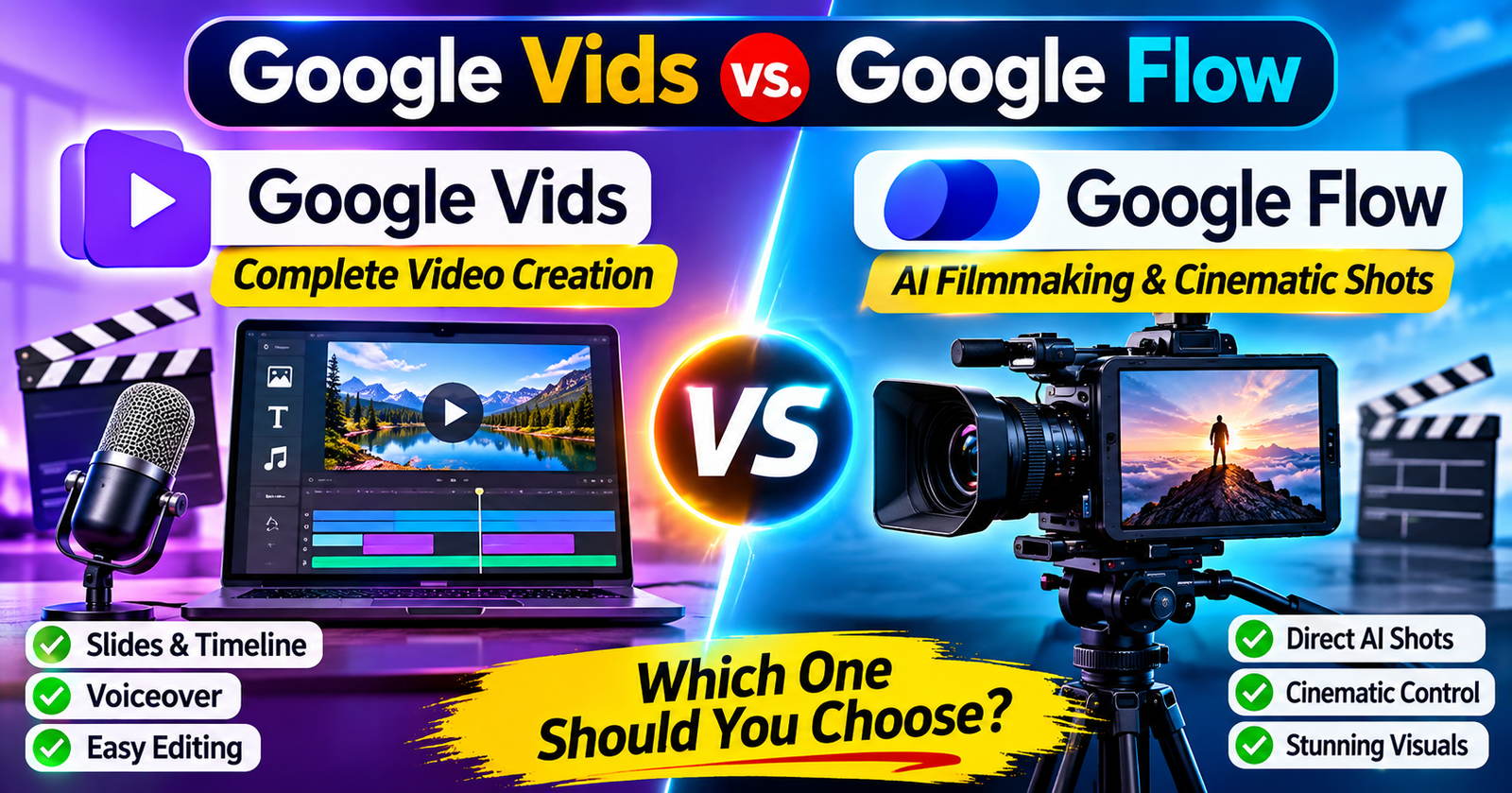
The short answer: they overlap in the middle but start from opposite ends. Flow is built around creating and directing individual shots. Vids is a video-making app for work that happens to include AI generation. Choosing well comes down to what you are trying to finish, a polished shot or a complete video. That is the heart of the Google Vids vs Google Flow decision.

In this article
Google Vids vs Google Flow: the short answer
| Aspect | Google Vids | Google Flow |
|---|---|---|
| Main job | Assemble a complete video | Create and direct shots |
| Google’s description | “AI video creation for work” | An AI filmmaking tool built on Google’s most capable generative models |
| Typical output | Multi-scene video with narration, captions or recordings | Individual clips and scenes |
What both can do
In the Google Vids vs Google Flow comparison, both apps generate video from prompts and reference images, and both can extend a clip. Google documented Ingredients to Video, which uses reference images to keep characters and objects consistent, in Vids and in Flow. In June 2026 Google also said all Vids users can extend clips with Veo and generate several clips at once.
Where they diverge
In Google Vids vs Google Flow, the real difference is the tools around generation. Vids surrounds generation with the things a finished work video needs: templates, recording, avatars, voiceover, a transcript editor and sharing controls. Flow surrounds it with shot-level creative tools such as Frames to Video, Extend and Insert. One is a production kit for a message; the other is a studio for a shot.
A note on model names
Google’s naming has moved quickly. Veo 3.1 was the model Google documented for both apps before Gemini Omni arrived. In May 2026 Google introduced Gemini Omni, whose first model, Omni Flash, launched through the Gemini app and Flow. Google’s current Vids page now describes generation under the Gemini Omni name. On November 5, 2026, Google released Gemini Omni 1.2 Flash, which supports clips up to 15 seconds. Press coverage of the announcement reported that Vids now runs on the new model (Fone Arena, Gigazine). In Flow, Google’s Help Center lists Omni Flash 1.2 and Veo 3.1 Lite as the current video models. Google has also announced that Veo 3.1 Fast, Veo 3.1 Quality and Omni Flash 1.1 will be retired on December 5, 2026, and they stay available until then. Details may still change. The Google Vids vs Google Flow difference below does not depend on which model is underneath.
What Google Vids actually is
More than an editor
Calling Vids a video editor undersells it. According to Google’s Vids page, you can:
- Start from templates, or turn a Google Slides presentation into a video.
- Record your screen and audio in a built-in studio.
- Generate clips from a text prompt, animate your images, and add native audio.
- Create AI avatars and voiceovers, with scripting in 24 languages.
- Edit by changing the text transcript, then add captions and transitions.
- Add your own photos and videos from Google Drive or Google Photos.
- Share with edit, comment or view permissions, and export to YouTube (exports default to private).
Limits worth knowing
Google states that each video can run up to 30 minutes, and that Vids supports widescreen, vertical and square formats. Creating and editing is desktop-only; you can watch videos on mobile.
Access
Google says Vids is free to try with a Google account, with advanced features and expanded usage limits for Workspace and Google AI plan users. Google’s June 2026 update lists Veo features as available on Business and Enterprise plans (Starter, Standard and Plus), Education Plus, and to all users with personal Google accounts, including Google AI Pro and Ultra. Users with the AI Expanded Access add-on get higher limits on generation.
What Google Flow actually is
A studio for directing shots
Google’s Veo 3.1 announcement describes Flow as its AI filmmaking tool and lists these capabilities, which Google’s current Flow Help Center still covers:
- Ingredients to Video: multiple reference images control characters, objects and style.
- Frames to Video: you provide a starting and an ending image, and Flow generates a video that bridges them. With Omni Flash 1.2 this is currently web-only.
- Extend: continue a clip into a longer shot. Since the November 5, 2026 change, Extend works only with Omni Flash 1.2 for Google AI Plus, Pro and Ultra subscribers, adds 3 to 10 seconds per extension, and is currently web-only.
- Insert: add elements to a scene, with shadows and lighting handled for you.
Flow also includes Scenebuilder, which Google has described as an in-Flow storyboard for assembling clips into a narrative. Google’s Flow Help Center explains how to edit clips and arrange them into a scene in Scenebuilder.
Access
Flow’s access has changed since the tool launched in May 2025. According to Google’s Flow Help Center, you must be 18 or older with a verified age and located in a supported region. VPNs do not unlock unsupported regions. Google recommends a Chromium-based browser such as Chrome on a computer for the most powerful editing features, and there is also a Flow app for creating on the go.
- No subscription: basic video generation and editing, plus 50 Flow credits per day. Omni Flash 1.2 makes 3 to 10 second clips, and Veo 3.1 Lite makes 4, 6 or 8 second clips. During peak hours, roughly 2 PM to 5 PM UTC, non-subscribers may not be able to generate video, although images and the Flow Agent still work.
- Google AI Plus, Pro and Ultra: the full Flow experience and extra monthly credits on top of the daily 50: 200 for Plus, 1,000 for Pro, and 10,000 or 25,000 for the two Ultra tiers. Omni Flash 1.2 clips can run 3 to 15 seconds, Omni Extend adds 3 to 10 seconds per extension, and subscribers can upscale to 1080p (4K for Ultra only).
- Qualifying Workspace and Education plans: access at no extra charge, with 50 daily credits (see the eligibility table below).
Daily credits refresh after your first generation and do not roll over. Monthly subscription credits refresh at the start of your billing cycle and also do not roll over. Credit costs depend on the model and resolution: at the time of writing, a 10-second Omni Flash 1.2 clip costs 30 credits at 720p or 10 credits at 360p, and a Veo 3.1 Lite clip costs 10 credits (5 for Ultra subscribers). Google says these limits can change, so check the costs shown in Flow before you generate. See Google’s page on managing Flow credits for details.
Avatars and voice references
Flow lets you create an avatar of yourself and call it in a prompt with @me. Google says avatars are not available in the EEA, the UK or Switzerland. You can start creating one on a computer, but you finish on a phone or tablet. Google also states that avatar data cannot be shared through Flow Tools or public project links (avatar help).
For voices, Google documents single-speaker voice references in Omni Flash: you choose a voice and refer to it in your prompt, for example @Voice: Andrew. Voice references work only on generations that use ingredients, and you can build a custom voice by starting from a preset voice and describing how to change it. This is not unrestricted voice cloning (voice references help).
Google Vids vs Google Flow: side-by-side comparison
The table below states “Not documented in sources reviewed” where the sources we checked do not confirm a detail, rather than guessing.
| Feature | Google Vids | Google Flow |
|---|---|---|
| Generates AI clips | Yes | Yes |
| Reference-image generation | Yes (Ingredients to Video) | Yes (Ingredients to Video) |
| Extend a clip | Yes (June 2026) | Yes (Omni Extend; Plus, Pro and Ultra only; web-only) |
| Start and end frame control | Not documented in sources reviewed | Yes (Frames to Video) |
| Templates, Slides to video | Yes | Not documented in sources reviewed |
| Screen recording, avatars, voiceover | Yes | Not documented in sources reviewed |
| Sharing permissions (edit, comment, view) | Yes | Not documented in sources reviewed |
| Maximum length | 30 minutes for a whole video | Per clip, not per video: 3 to 10 seconds without a subscription, 3 to 15 seconds with Plus, Pro or Ultra (Omni Flash 1.2); Veo 3.1 Lite makes 4, 6 or 8 seconds |
| Vertical output | Yes (vertical and square supported) | Not documented in sources reviewed |
| Devices | Create and edit on desktop; view on mobile | Most powerful editing on a computer in a Chromium-based browser; Flow app for creating on the go. Frames to Video and Omni Extend are web-only |
| Access | Free to try; advanced features on paid plans | 50 free credits a day; Plus, Pro and Ultra add monthly credits |
Google Vids vs Google Flow: which one should you use?
| If you need… | Start with | Why |
|---|---|---|
| An onboarding video from a slide deck | Vids | Slides-to-video, templates and voiceover are built in |
| A screen-recorded product walkthrough | Vids | Recording studio and transcript editing |
| A video your team can review and comment on | Vids | Docs-style sharing permissions |
| A cinematic transition between two images | Flow | Frames to Video is designed for this |
| A long, continuous establishing shot | Flow | Extend is built for longer shots |
| One recurring character across several shots | Flow, then Vids | Generate and refine shots, then assemble |
| A short vertical clip | Either | Vids supports vertical; test both for the look you want |
Two illustrative scenarios
These Google Vids vs Google Flow examples are hypothetical, not test results.
A bakery owner wants a 45-second welcome video for new hires: a few slides, a friendly voiceover, some footage of the shop, a short generated shot of fresh bread. That is a complete video with narration, so Vids is the natural home.
A solo creator wants a slow, dramatic reveal of a product that starts on a closed box and ends on the open box. That is one shot with a defined start and end, which is what Frames to Video describes. Flow is the better starting point.
How to use Flow and Vids together
If your project needs both a directed shot and a finished video, a sensible four-step order is:
- Generate and refine the shot in Flow. Use reference images to keep subjects consistent.
- Download the clip. We did not find a documented one-click handoff from Flow to Vids in Google’s sources, so confirm the download options inside Flow.
- Add it to a Vids project as your own media. Google says you can add your own photos and videos from Drive or Photos.
- Finish and share in Vids. Add narration, captions, scenes and branding, then set viewing permissions or export to YouTube.
This workflow follows from each app’s documented features. We have not tested it end to end.
Common mistakes when choosing between Vids and Flow
- Expecting a timeline editor in Flow. It is built for creating shots, not for assembling a narrated work video.
- Expecting shot-level control in Vids. Vids generation is one tool among many, aimed at getting a complete video done.
- Assuming access is the same everywhere. Eligibility depends on whether you use a personal account, Workspace or an education plan.
- Trusting old Google Vids vs Google Flow comparisons. Both apps added features in 2026, and the model names changed.
Access and eligibility at a glance
| Account type | Vids | Flow |
|---|---|---|
| Personal Google account | Free to try; Veo features available per Google’s June 2026 update | Yes, if you are 18 or older and in a supported region: 50 free credits a day for basic video generation and editing |
| Google AI plans | Pro and Ultra listed | Plus, Pro and Ultra: the full Flow experience plus monthly credits (200, 1,000, and 10,000 or 25,000 for the two Ultra tiers) |
| Workspace Business or Enterprise | Starter, Standard and Plus listed | Business and Enterprise Starter, Standard and Plus, plus G Suite Legacy Free Edition, with 50 daily credits |
| Education | Education Plus listed | Education Standard, Education Plus and Google AI Pro for Education, with 50 daily credits |
Vids and Flow have separate eligibility rules, so access to one does not guarantee access to the other. Flow also requires you to be 18 or older and in a supported region.
FAQ
Does Google Vids use Veo?
Google documented Veo 3.1 features in Vids, including the June 2026 Extend update. Press coverage of Google’s November 5, 2026 announcement says Vids now runs on Gemini Omni 1.2 Flash, a newer Google model family. See “A note on model names” above.
Is Google Flow the same as Google Vids?
No. Flow is an AI filmmaking tool for directing shots. Vids is a Workspace video app for building complete videos, which also generates clips.
Google Vids vs Google Flow: which is better for YouTube Shorts?
It depends on the clip. Vids supports vertical video and exports to YouTube. Flow offers more shot-level creative tools. Try a prompt in each and compare.
Is Google Flow free?
Partly. Without a subscription you get 50 Flow credits per day for basic video generation and editing. You must be 18 or older and in a supported region, and non-subscribers may not be able to generate video during peak hours, roughly 2 PM to 5 PM UTC. Google AI Plus, Pro and Ultra add monthly credits, longer clips and extra features such as Extend.
Can I use both together?
Yes, in principle. Make shots in Flow, then add the downloaded clips to a Vids project as your own media.
Do I need a Workspace account?
For Vids, no. Google says it is free to try with a Google account, and its June 2026 update lists personal accounts as eligible for Veo features. Some capabilities and higher limits need a paid plan.
Can I edit Vids on my phone?
Not yet. Google says creating and editing is desktop-only, while viewing works on desktop and mobile.
The bottom line on Google Vids vs Google Flow
In the Google Vids vs Google Flow choice, if the end product is a complete video with a message, narration and an audience, start in Vids. If the end product is a shot you want to direct, start in Flow. If it is both, make the shot in Flow and finish in Vids. Flow has a free daily credit allowance and paid Google AI plans add more, so you can try both before you commit.
Sources
- Google Workspace: Google Vids
- Google Workspace Updates: Ingredients to Video in Vids (November 2025)
- Google Workspace Updates: portrait-sized clips in Vids (January 2026)
- Google Workspace Updates: longer Veo videos and multiple clips in Vids (June 2026)
- Google: Veo 3.1 and advanced capabilities in Flow
- Google: Tips for getting started with Flow
- Google Flow Help: Get started with Google Flow
- Google Flow Help: Create videos in Google Flow
- Google Flow Help: Edit videos and build scenes
- Google Flow Help: Models and supported features
- Google Flow Help: Manage your Flow credits
- Google Flow Help: Create and use your avatar
- Google: Gemini Omni 1.2 Flash
- Google: Introducing Gemini Omni
- Fone Arena: Gemini Omni 1.2 Flash coverage (secondary source)
- Gigazine: Gemini Omni 1.2 Flash coverage (secondary source)