
Google Flow free credits are the 50 credits Google gives every eligible Flow account each day, but 50 credits go a long way or almost nowhere depending on the model you pick. A 10-second 720p clip in Omni Flash 1.2 costs 30 of them. The same budget buys five 8-second Veo 3.1 Lite clips. Images, meanwhile, run on a separate daily limit and don’t touch your video credits at all.
This guide uses Google’s own help pages to show the math behind Google Flow free credits, the hours when video may be blocked, and how to spend a day’s credits without throwing them away.
Last verified: November 6, 2026, against Google’s Flow Help pages. Google changes these limits often, so we’ll note when something is likely to shift.
Quick answer: Google Flow free credits at a glance
- Daily credits: Google Flow free credits total 50 a day, even without a subscription. The refresh starts with your first generation, and unused credits don’t roll over.
- Omni Flash 1.2: 1 credit per second at 360p, 3 per second at 720p, up to 10 seconds on a free account.
- Veo 3.1 Lite: 10 credits per 4-, 6-, or 8-second clip (non-Ultra users).
- Images: separate daily limits that don’t touch your video credits.
- Retiring December 5, 2026: Veo 3.1 Fast, Veo 3.1 Quality, and Omni Flash 1.1, so leave them out of your daily plan.
- Requirements: 18 or older, verified age, in a supported region (the US, UK, Canada, and Australia are all listed).
Key takeaways on Google Flow free credits
- The cheapest way to see a concept with your Google Flow free credits is Omni Flash 1.2 at 360p: 50 credits is 50 seconds of footage.
- Veo 3.1 Lite is a flat 10 credits per clip regardless of length, so 8-second clips give you the most video per credit.
- A 10-second 720p Omni clip (30 credits) leaves you 20 credits for the rest of the day.
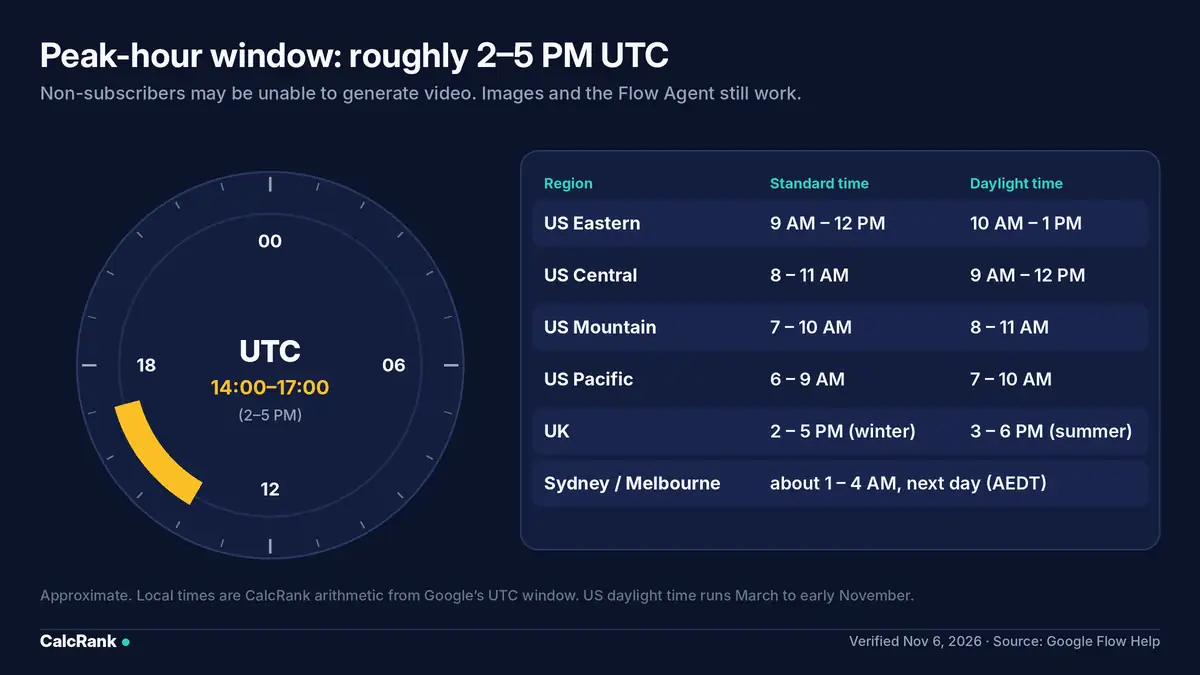
- Without a subscription, video generation may be blocked during peak hours, and Google’s Help pages don’t agree on exactly when.
- Credits are charged per generation, not per request. A single request can generate two videos, and each video counts as a separate generation.
Table of Contents
How we researched this
Everything below about Google Flow free credits comes from Google’s Flow Help pages: Manage your Google Flow credits, Learn about Google Flow models & supported features, Get started with Google Flow, Where you can use Google Flow, and Create & edit images in Google Flow. We did not run our own generation tests, so this article contains no hands-on results. Where Google’s pages disagree or a detail isn’t published, we say so.
We label claims three ways: Confirmed (stated on a Google page), Changing (Google says it may shift), and Unverified (not published, or the pages conflict).
Who can use Google Flow free credits?
Google’s Get Started page lists the basic requirements for using Flow: you’re 18 or older with your age verified in your Google Account, and you’re in a supported region. Google’s Credits page says that with no subscription you receive 50 Flow credits a day “to try Google Flow,” and the Models page lists the features available without a Google AI subscription. In other words, Google Flow free credits are available without paying. (Confirmed)
Regions: The United States, United Kingdom, Canada, and Australia all appear on Google’s supported list. VPNs won’t unlock an unsupported region. (Confirmed) UK, EEA, and Swiss users should also know that editing uploaded videos and the Avatars feature aren’t available there. (Confirmed)
Workspace users: Qualifying Workspace plans get Flow with 50 daily credits at no extra charge. (Confirmed)
Browser: Google recommends Chrome or Edge on a desktop computer. Other browsers and mobile devices may work but aren’t fully optimized. (Confirmed)
If Flow blocks you from generating, check these in order: age verification, region, browser, and the peak-hour window described below.
How the 50 daily credits work
- Amount: 50 Flow credits a day, with or without a subscription. Subscribers get extra monthly credits on top. (Confirmed)
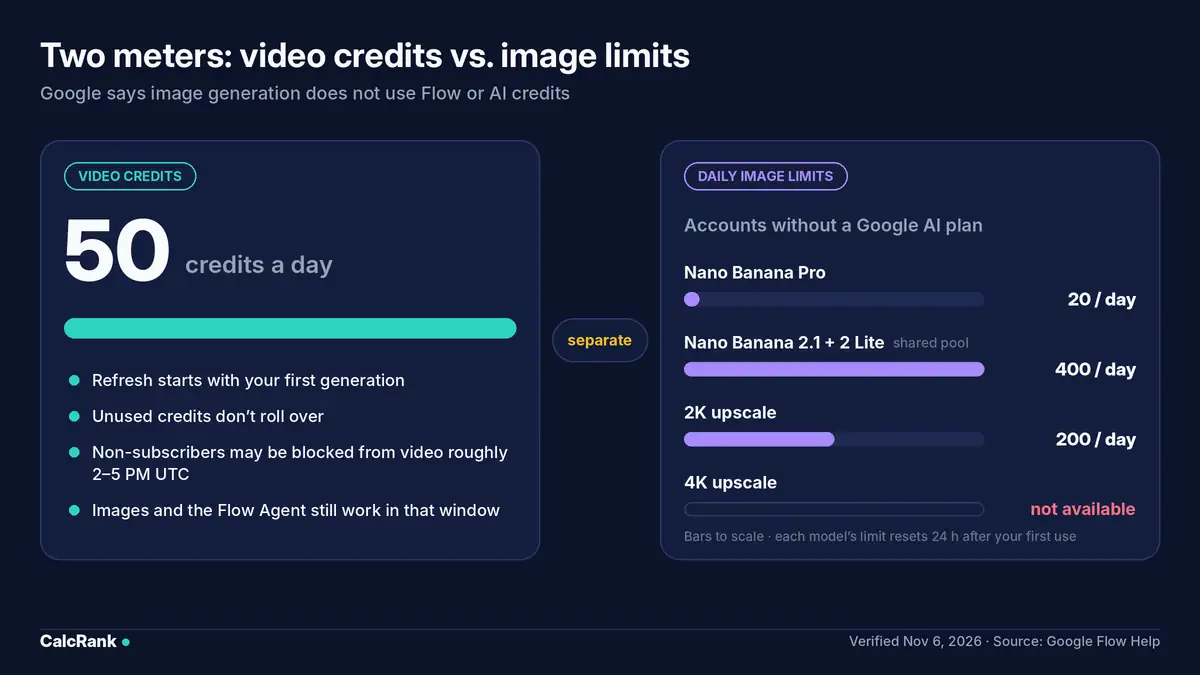
- Refresh: Your daily refresh is triggered by your first generation. If you first generate on August 12, Google says your next 50 credits arrive on August 13. (Confirmed) So the clock isn’t midnight; it starts when you begin.
- No rollover: Unused Google Flow free credits disappear at the refresh. (Confirmed)
- Per generation: Costs apply per generation, not per request, and a single request can produce more than one video. Check the output count before you press Generate. (Confirmed)
- Refunds: If a generation fails or hits a safety filter, Google says credits come back within about an hour. (Confirmed)
- Your balance: Click your profile picture in the top right of Flow to see remaining credits. (Confirmed)
- Costs can change: Google says limits are subject to change at any time and recommends checking model costs in the prompt-box Settings. (Changing)
Credit math: what Google Flow free credits buy
Omni Flash 1.2 (the current model)
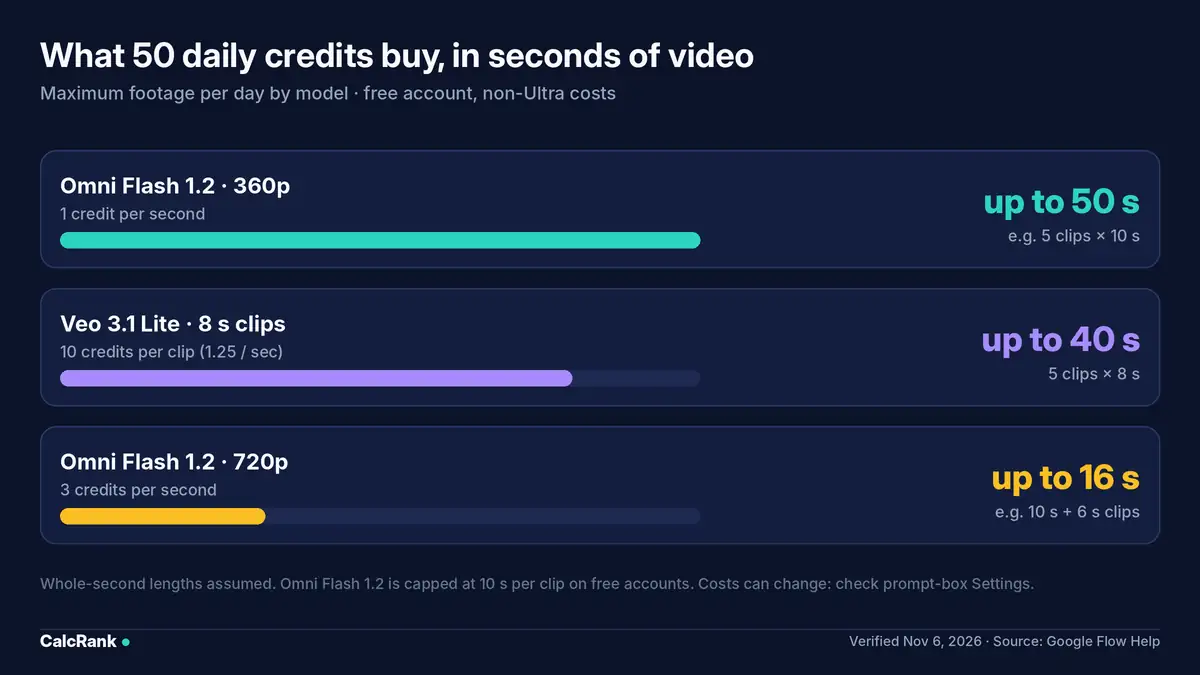
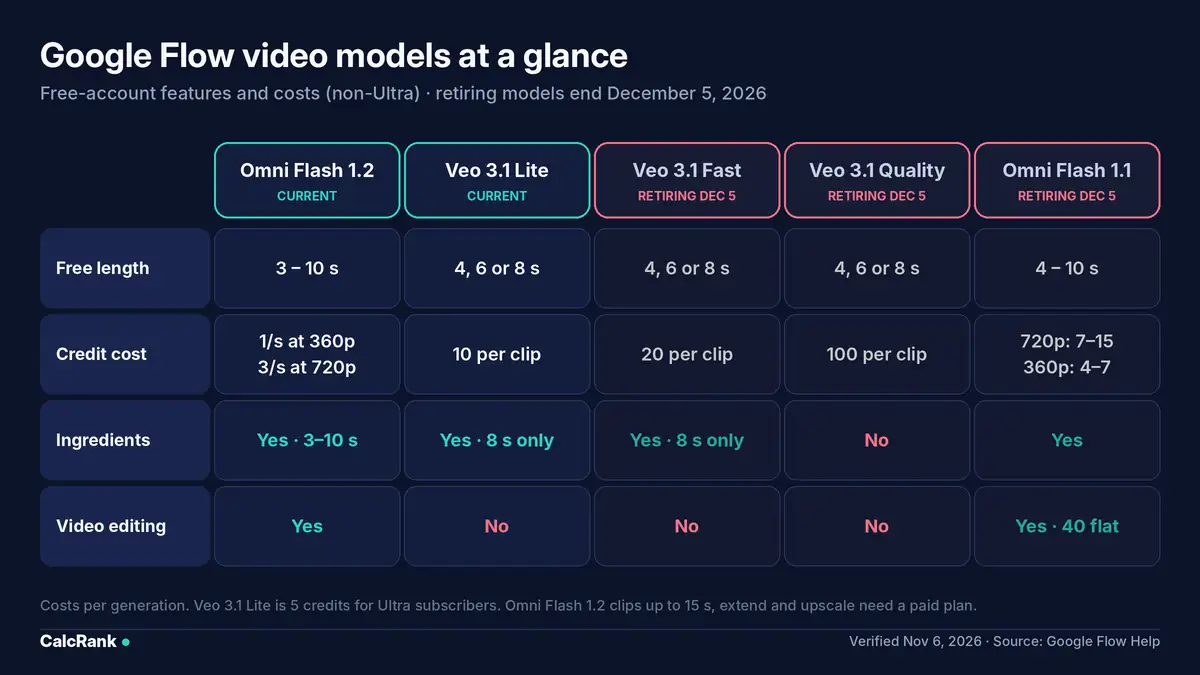
On Omni Flash 1.2, Google prices by the second: 1 credit per second at 360p and 3 credits per second at 720p. Free accounts can generate or edit up to 10 seconds. (Confirmed) The table below shows what your Google Flow free credits cover. It assumes whole-second lengths; confirm the options in the app’s length selector.
| Length | 360p cost (1/sec) | Clips from 50 credits | 720p cost (3/sec) | Clips from 50 credits |
|---|---|---|---|---|
| 3s | 3 | 16 (2 left) | 9 | 5 (5 left) |
| 4s | 4 | 12 (2 left) | 12 | 4 (2 left) |
| 5s | 5 | 10 (0 left) | 15 | 3 (5 left) |
| 6s | 6 | 8 (2 left) | 18 | 2 (14 left) |
| 8s | 8 | 6 (2 left) | 24 | 2 (2 left) |
| 10s | 10 | 5 (0 left) | 30 | 1 (20 left) |
In seconds of video, 50 credits make up to 50 seconds at 360p or 16 seconds at 720p.
Veo 3.1 Lite
Veo 3.1 Lite costs a flat 10 credits per 4-, 6-, or 8-second 720p video for non-Ultra users (Ultra subscribers pay 5). (Confirmed) That gives you five clips a day from your Google Flow free credits, up to 40 seconds if you make them all 8 seconds.
Because the price doesn’t change with length, an 8-second Lite clip works out to 1.25 credits per second, a 6-second one to about 1.7, and a 4-second one to 2.5. If you use Lite, you usually get the most footage per credit from the longest length. Cost per second isn’t a quality comparison. These are different models, so judge the output yourself.
Retiring models (until December 5, 2026)
These costs apply only until the models are retired. (Confirmed; Changing)
| Model | Credits per generation | Clips from 50 credits |
|---|---|---|
| Veo 3.1 Fast Retiring Dec 5 | 20 | 2 (10 left, enough for one Lite clip) |
| Veo 3.1 Quality Retiring Dec 5 | 100 | 0, because a day’s credits can’t reach 100 |
| Omni Flash 1.1, 720p (4s / 6s / 8s / 10s) Retiring Dec 5 | 7 / 10 / 12 / 15 | 7 / 5 / 4 / 3 |
| Omni Flash 1.1, 360p (4s / 6s / 8s / 10s) Retiring Dec 5 | 4 / 5 / 6 / 7 | 12 / 10 / 8 / 7 |
| Omni Flash 1.1 video edit Retiring Dec 5 | 40 flat | 1 |
Don’t mix the 1.1 and 1.2 numbers. Older articles and screenshots often show the flat 1.1 prices, which won’t match what you see once you’re on Omni Flash 1.2.
Four sample days with Google Flow free credits
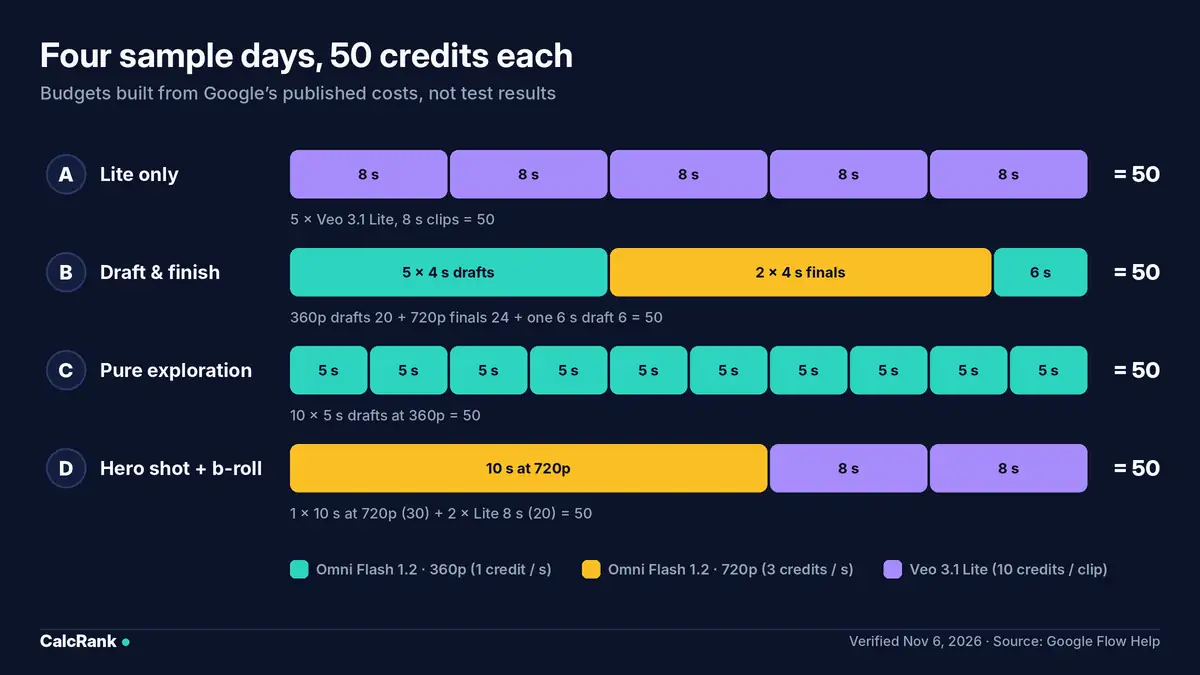
These are budgets, not test results.
- Plan A, Lite only: Five 8-second Lite clips = 50 credits (40 seconds total).
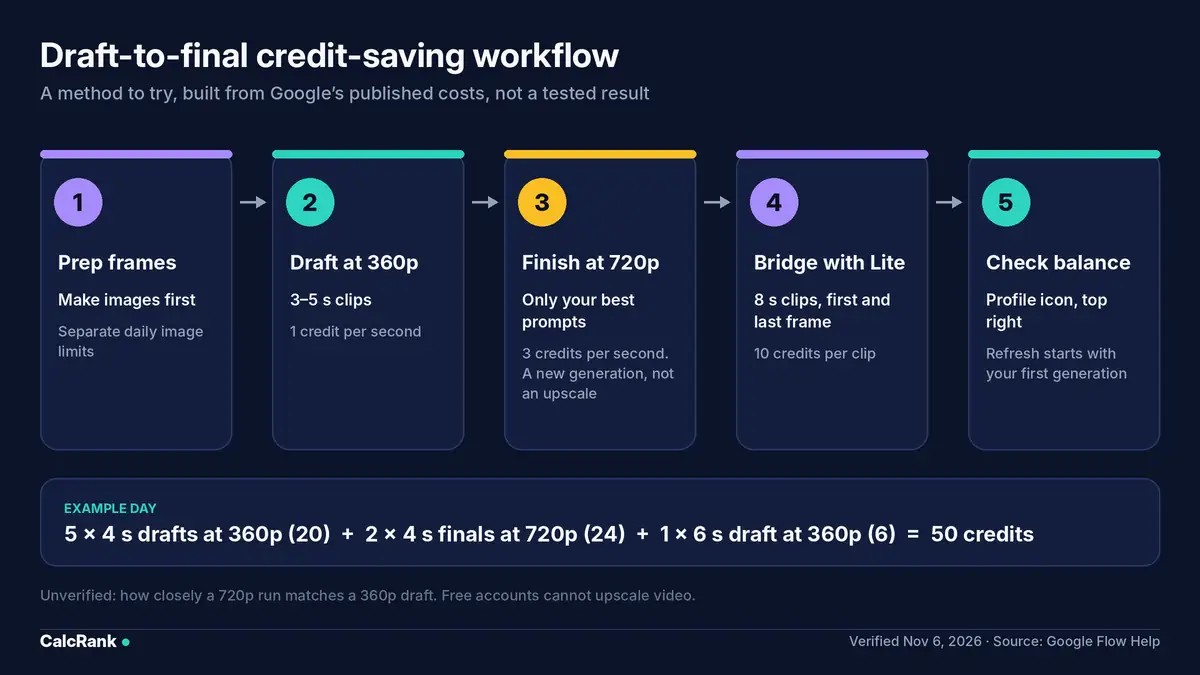
- Plan B, draft and finish: Five 4-second drafts at 360p (20), two 4-second finals at 720p (24), and one 6-second draft at 360p (6) = 50 credits.
- Plan C, pure exploration: Ten 5-second drafts at 360p = 50 credits.
- Plan D, one hero shot plus b-roll: One 10-second clip at 720p (30) plus two 8-second Lite clips (20) = 50 credits.
Free image generation: a separate limit
Google says generating and upscaling images in Flow does not currently use your monthly Flow credits or AI credits. Instead, each plan has a daily limit per model. That means Google Flow free credits stay untouched when you make images. (Confirmed) For accounts without a Google AI plan:
| Image model or task | Free daily limit |
|---|---|
| Nano Banana Pro | Up to 20 a day |
| Nano Banana 2.1 + Nano Banana 2 Lite (one shared pool) | Up to 400 a day combined |
| 2K upscale | Up to 200 a day |
| 4K upscale | Not available |
Nano Banana 2.1 and Nano Banana 2 Lite share a single pool, so an image from either counts toward the same 400. A model’s daily limit resets 24 hours after your first generation with that model or shared pool. Failed or safety-blocked generations don’t count. Google may also add short-term rate limits for very rapid generation. (Confirmed)
Google’s Models page calls Nano Banana 2 Lite the default model available at no charge. (Confirmed) One thing to check: the images page says Flow’s prompt box defaults to Nano Banana Pro, which has the 20-a-day free cap, so look at the model selector before you generate a batch. (Unverified how your account displays this)
Why it matters: You can create frames and ingredients for your videos without spending your 50 video credits. We couldn’t find how the Flow Agent’s multi-image requests (such as asking for many variations at once) count toward the daily image limit, so keep an eye on that. (Unverified)
When you can’t generate video
Google says that during peak hours, you may not be able to generate videos without a subscription, so even Google Flow free credits can sit unused during those hours. You can still generate images and use the Flow Agent. (Confirmed; Changing)
We can’t confirm the exact hours. Google’s official Help pages currently show inconsistent UTC windows for this peak period, depending on the version of the page. Check the credits page for your version, and if video is blocked, try again at a different time of day. (Unverified)
Peak-hour information last checked: November 9, 2026.
Other messages you might see: “You’re requesting generations too quickly” (rate limiting) and “We noticed some unusual activity” (retry after a couple of minutes and turn off VPNs or proxies). (Confirmed)
Omni Flash 1.2 vs. Veo 3.1 Lite (and the retiring models)
Omni Flash 1.2 (current)
- Free features: text to video, frames to video, ingredients/references to video, and video-to-video editing, all at 3 to 10 seconds, in both aspect ratios. (Confirmed)
- Frames to Video is currently available only in Flow on the web. (Confirmed)
- 360p mode generates or edits at one-third the credit cost of 720p. (Confirmed)
- Custom voices are available; some Omni features are region-limited. (Confirmed)
- Paid only: clips up to 15 seconds, extending videos, and upscaling 360p clips. (Confirmed)
Veo 3.1 Lite (current)
- Google describes it as a low-cost baseline for standard 720p creation. (Confirmed)
- Features: text to video, first-frame and first-and-last-frame video, and ingredients/references (8-second videos only), in both aspect ratios. (Confirmed)
- Not supported: video-to-video editing and extending. (Confirmed)
Retiring on December 5, 2026
Google says Veo 3.1 Fast, Veo 3.1 Quality, and Omni Flash 1.1 will be retired on December 5, 2026, and recommends switching to Omni Flash 1.2 or Veo 3.1 Lite. You can keep using them until then. (Confirmed; Changing) Separately, Veo Extend was retired on November 5, 2026, and extending now requires a paid plan and Omni Flash 1.2. (Confirmed)
For the record, Veo 3.1 Fast supports ingredients at 8 seconds, while Veo 3.1 Quality doesn’t support ingredients at all. (Confirmed)
| Feature | Omni Flash 1.2 | Veo 3.1 Lite | Veo 3.1 Fast / Quality, Omni 1.1 |
|---|---|---|---|
| Status | Current | Current | Retiring Dec 5, 2026 |
| Free length | 3 to 10s | 4s, 6s, 8s | 4s/6s/8s (Veo); 4s to 10s (Omni 1.1) |
| Cost model | Per second (1 or 3) | Flat 10 per clip | See retiring-models table above |
| Ingredients | Yes (3 to 10s) | Yes (8s only) | Fast: 8s; Quality: none; Omni 1.1: yes (4 to 10s) |
| Video editing | Yes | No | Omni 1.1: yes (up to 10s); Veo: no |
| First/last frame | Frames to Video (web only; check app for first/last) | Yes | Yes (Veo & Omni 1.1) |
A workflow to stretch your Google Flow free credits
This is a method built from Google’s published costs and features, not a result from our own testing. Whether a cheap draft predicts the final clip is something you’ll need to judge for yourself.
- Check before you generate. In the prompt box Settings, confirm the active model, resolution, cost, and how many videos one request creates.
- Prepare frames and ingredients as images first. Image generation uses separate daily limits, so it won’t spend video credits. Check which image model you’re on.
- Draft cheaply. Use Omni Flash 1.2 at 360p for 3 to 5 seconds to test your prompt, camera move, and composition.
- Re-run only your best prompts at 720p. This is a new generation, not an upscale. Free accounts can’t upscale video, and Google doesn’t say how closely a 720p run will match a 360p draft. (Unverified)
- Use Lite for efficiency. An 8-second Veo 3.1 Lite clip costs 1.25 credits per second, and Lite supports first-and-last-frame control, useful for bridging shots.
- Skip long 720p runs on first attempts. A 10-second 720p clip is 30 credits, 60 percent of your day.
- Allow for peak hours. Google’s published Help pages currently show different UTC windows for this peak period, and we couldn’t confirm which window applies to every user, so if video generation is blocked, try again at a different time of day.
- Watch the output count. If a request can create two videos, you pay per generation.
Vertical 9:16 video on a free account
Both aspect ratios are supported across Omni Flash 1.2 and Veo 3.1 Lite. (Confirmed) For consistent characters or objects across shots, Flow offers ingredients/references: on Omni Flash 1.2 they work at 3 to 10 seconds on a free account, and on Veo 3.1 Lite they work for 8-second videos only. (Confirmed) You can also reference a character by typing @ followed by its name in the prompt. (Confirmed)
How well any of this holds up in practice is something we haven’t tested, so we won’t claim results here. A small experiment with a few cheap drafts at 360p is the low-risk way to find out.
Mistakes that waste credits
- Spending on retiring models. Veo 3.1 Fast and Quality go away on December 5.
- Ignoring multi-output requests. Costs are per generation, not per request.
- Going long and sharp too early. A 10-second 720p clip is 30 credits.
- Missing the Nano Banana Pro cap. Only 20 a day free, so check the model selector.
- Expecting paid features. Free accounts can’t extend, upscale video, or go past 10 seconds.
- Assuming a midnight reset. The refresh starts with your first generation.
- Generating during peak hours. You may be blocked.
Free vs. paid
Subscribers get extra Flow credits on top of the daily 50, according to Google: Plus adds 200 a month, Pro adds 1,000, Ultra $100 adds 10,000, and Ultra $200 adds 25,000. Unused monthly credits don’t roll over. (Confirmed; Changing) Paid plans also unlock clips up to 15 seconds, video extending, and 1080p upscaling for 0 credits (up to 10 seconds), and Ultra subscribers pay half price on Veo 3.1 Lite. Image limits go up too: for example, Plus and Pro get up to 100 Nano Banana Pro images and 1,000 combined Nano Banana 2.1/2 Lite images a day. (Confirmed)
Watermarks: All outputs carry an invisible SynthID watermark. A visible watermark can be added with a toggle under your profile picture, and Google applies it automatically for users in India, South Korea, and Vietnam who aren’t on Ultra 20x. (Confirmed)
Commercial use: Google points to its Terms of Service, which say it won’t claim ownership over content you generate. Read the Terms in full; this isn’t legal advice. (Confirmed)
Where Google’s documentation differs
Google’s help pages are updated frequently, and a few details don’t line up from page to page. Here’s what we found as of November 6, 2026:
- Omni Flash 1.1 vs. 1.2 pricing. The older flat prices (7, 10, 12, and 15 credits for 4-, 6-, 8-, and 10-second 720p clips) belong to Omni Flash 1.1, which retires December 5. Omni Flash 1.2 uses per-second pricing (1 or 3 credits). Don’t mix them.
- How much 360p saves. Google’s Models page says 360p costs one-third of 720p. That matches Omni Flash 1.2’s per-second pricing (1 vs. 3). Under Omni Flash 1.1’s table, 360p was roughly half (for example, 4 vs. 7 credits).
- The default image model. The Models page names Nano Banana 2 Lite as the default at no charge, while the image page says the prompt box defaults to Nano Banana Pro. Check your selector.
- Failed-generation refunds. The desktop Get Started FAQ says credits return within about an hour; the Android version says you aren’t charged for failed generations. Either way, failed runs shouldn’t cost you.
- Eligibility wording. The Credits and Models pages describe a no-subscription tier with 50 daily credits. The wording on the Get Started page’s requirements list has varied by version and platform. If Flow asks you to subscribe before you can generate, trust what your account shows and recheck Google’s pages, since they change often.
- Peak-hour window. Google’s Help pages currently show inconsistent UTC windows for the non-subscriber peak period, depending on the page version. We don’t state one, so check the credits page for your version.
FAQ
What are Google Flow free credits?
Google Flow free credits are the 50 credits per day Google gives eligible accounts without a subscription to try Flow. You spend them on video generations, and they don’t roll over.
Is Google Flow free?
Google says users without a subscription get 50 Flow credits a day to try Flow. You must be 18 or older with verified age, in a supported region. Peak-hour limits and feature restrictions apply.
Who can use Flow: is it available in the US, UK, Canada, and Australia?
All four are on Google’s supported-countries list. Some features differ by region; for example, editing uploaded videos isn’t available in the UK.
How many videos can I make with 50 credits?
It depends on the model. Up to five Veo 3.1 Lite clips, up to 50 seconds at Omni 360p, or up to 16 seconds at Omni 720p. See the tables above.
Do credits roll over?
No. Unused daily credits disappear at the refresh.
When do my credits refresh?
Your refresh is triggered by your first generation. If you first generate on August 12, the next 50 credits arrive on August 13, per Google’s example.
Do images use my video credits?
Google says image generation and upscaling don’t use monthly Flow or AI credits; they follow separate daily limits by model.
Why can’t I generate video right now?
Non-subscribers may be blocked from generating video during peak hours, and Google’s Help pages don’t agree on the exact window. Also check rate limits, VPNs, and your account’s region and age verification.
Do failed generations cost credits?
Google says credits are returned within about an hour if a generation fails or hits a safety filter.
What happens on December 5, 2026?
Veo 3.1 Fast, Veo 3.1 Quality, and Omni Flash 1.1 are retired. Omni Flash 1.2 and Veo 3.1 Lite remain.
Can free accounts extend or upscale video?
No. Extending and video upscaling require Google AI Plus, Pro, or Ultra.
Bottom line
For free accounts, think in seconds, not clips. Draft cheap, spend your Google Flow free credits on the clips that matter, and build your frames with the separate image limits. Because Google changes these numbers often, check the prompt-box Settings before you generate, and recheck after December 5.
Explore more on CalcRank: AI Image & Video Generators, Free AI Tools & Websites, and AI Tutorials & Guides.
Sources (Google Flow Help): Credits · Models & features · Get started · Supported regions · Images · Create videos · labs.google/flow
CalcRank isn’t affiliated with Google. Limits and prices can change without notice.